
A good wedding videography folder structure makes the next handoff obvious. Camera originals remain untouched, audio stays separate, proxies have one destination, the editor knows which project file is current, and review exports cannot be confused with approved masters.
Use the same structure in local storage, Google Drive or Dropbox. The provider matters less than the naming rule and the people responsible for each step.
Copyable wedding video folder template
2026-08-15_Anna-Lars_Wedding/
├── 01_RAW/
│ ├── Camera_A/
│ │ ├── Card_01/
│ │ └── Card_02/
│ ├── Camera_B/
│ │ └── Card_01/
│ └── Drone/
├── 02_AUDIO/
│ ├── Ceremony/
│ ├── Speeches/
│ └── Sync/
├── 03_PROXIES/
├── 04_PROJECT/
│ ├── Premiere_or_Resolve/
│ ├── Music/
│ ├── Graphics/
│ └── Autosaves/
└── 05_EXPORTS/
├── Review/
└── Approved/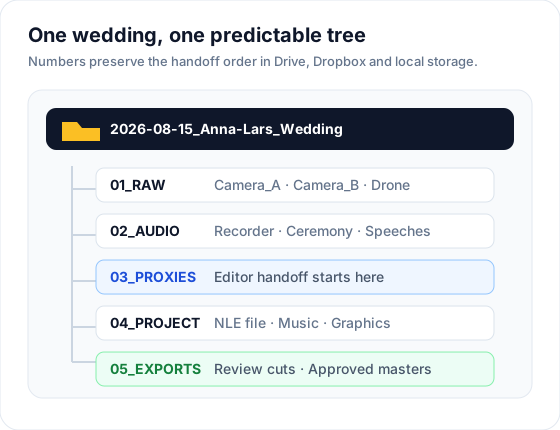 Numbered folders preserve the production order and expose the editor handoff.
Name the project folder so it sorts and searches
Use an ISO date first:
YYYY-MM-DD_ClientName_EventTypeExamples:
2026-08-15_Anna-Lars_Wedding2026-09-22_Kovacs_Engagement2026-10-04_Sofia-Marco_Elopement
The date makes projects sort chronologically. Client and event names make the folder searchable without opening a CRM. Avoid characters that behave differently across operating systems and storage providers. Hyphens or underscores are safer than decorative punctuation.
If two couples have the same names or the studio shoots multiple events on one date, add a short location or internal project code.
What belongs in each folder
01_RAW: untouched camera originals
Preserve the original card structure inside a folder named for the source. Do not mix Camera A and Camera B files in one flat directory just because their filenames look different today.
Create one folder per physical card when duplicate filenames are possible:
Camera_A/Card_01
Camera_A/Card_02
Camera_B/Card_01
The RAW folder is not a working area. Renaming, transcoding or reorganizing originals should happen elsewhere after the backup is verified.
02_AUDIO: external recorders and sync material
Separate ceremony, speeches and other recorder sources. If the editor receives prepared multitrack or synchronized audio, put that result in Sync while retaining the originals in their event folders.
03_PROXIES: the editor handoff
Use one predictable destination for generated proxies. Match proxy filenames to the originals so relinking remains possible. A completed proxy folder can be the handoff signal: the editor should not have to inspect every RAW directory to learn whether ingest is finished.
04_PROJECT: editable production files
Keep the NLE project, autosaves, music licenses, graphics and project-specific assets here. Use explicit version names for the project file when the application does not handle version history safely:
Anna-Lars_Highlight_v01.prproj
Anna-Lars_Highlight_v02.prproj
Do not call an editable project final. The approved deliverable belongs under 05_EXPORTS/Approved.
05_EXPORTS: review cuts and approved masters
Separate working exports from deliverables:
Reviewcontains V1, V2 and later cuts shared for comments.Approvedcontains the masters the studio has signed off for delivery.
That boundary prevents an editor from uploading a review export simply because it is the newest file in the folder.
Add a naming rule for review exports
Include the deliverable and version:
Anna-Lars_HighlightFilm_V1.mp4
Anna-Lars_HighlightFilm_V2.mp4
Anna-Lars_CeremonyFilm_V1.mp4
Version numbers describe review rounds. Dates can help with archival context, but they do not replace the version because two exports may be created on the same day.
When review happens in a dedicated tool, keep the visible deliverable name simple and let the tool hold the version history. The storage copy can retain the explicit filename.
Assign ownership at every handoff
The folder tree cannot tell the team who must act. Define the owner of each transition:
| Handoff | Owner | Completion signal |
|---|---|---|
Cards to 01_RAW | ingest lead | cards copied and verified |
Recorder files to 02_AUDIO | audio or ingest lead | sources labeled by event |
Proxies to 03_PROXIES | ingest lead | proxy set complete |
Project created in 04_PROJECT | editor | current NLE file identified |
Review export to 05_EXPORTS/Review | editor | numbered version uploaded for notes |
Master to 05_EXPORTS/Approved | studio owner or approver | approval recorded |
One person may own several rows. The point is that the next person does not infer readiness from partial files.
A folder structure is not a backup strategy
Google Drive and Dropbox can synchronize files, but a synchronized deletion or damaged file can propagate. Keep verified copies according to the studio’s backup policy and do not clear camera cards until the required copies exist and can be opened.
For large RAW footage, decide which folders truly need cloud synchronization. Many studios keep originals on dedicated storage and use cloud storage for proxies, project files, review exports and approved masters. Document the rule so an editor does not assume a cloud folder is the only copy.
Connect the folder to the production project
The editor should find the storage link beside the assignment, deadline and status. A URL pasted once in a long chat thread will disappear under later messages.
FlowShot can connect Google Drive, Dropbox or both. The organization chooses a parent folder and a naming/subfolder template. With automatic folders enabled, creating a project creates the folder structure and links it to that project; the files remain in the studio’s own storage provider.
Photo-and-video bookings can use one project folder with Photo and Video subfolders or two sibling project folders when each format has a separate team and delivery path.
FAQ
What is the best folder structure for video editing?
Separate immutable originals, audio, proxies, editable project files and exports. Keep review exports apart from approved masters, and preserve camera/card boundaries inside the originals folder.
Should wedding footage be organized by camera or part of the day?
Organize original media by camera and card so filenames remain unique and relinking stays predictable. The NLE can organize clips by ceremony, speeches, reception and story role without changing the source folder structure.
Should proxies go in Google Drive?
They can when the connection and storage allowance fit the project. Proxies are often better cloud-transfer candidates than RAW camera originals because they are smaller and can be regenerated. Keep the proxy naming consistent with the source files.
How should I name wedding video versions?
Use the client or project, deliverable and a sequential version such as Anna-Lars_HighlightFilm_V2.mp4. Record approval separately instead of repeatedly adding words such as final and real-final to the filename.
Does FlowShot replace Google Drive or Dropbox?
No. FlowShot creates and links project folders in the connected provider, then keeps the production record around those folders. Drive or Dropbox remains the studio’s storage system.
Updated
See the workflow in FlowShot ↗